
You can import existing translations into langify to add translations from an external source or restore translations to a previous version.
For more information about exporting your translations from langify, please check out our Export Translations guide.
There are three options for the import format:
- PO/MO (.mo)
- CSV (.csv)
- Advanced CSV (.csv)
Before You Import
- Externally created CSV files must match langify's CSV structure to import successfully. For best results, use a CSV or PO file exported directly from langify.
- Do not close the langify tab during the import and make sure your device does not go into sleep mode.
- Before importing, make sure you have the correct language selected in the langify header. This is the language the translations will be imported for.
- To avoid mistakes, it is recommended to make a fresh export as a backup before importing.
- An import via langify will never delete translations. If an entry has no translation, it will simply be skipped.
Importing Translations
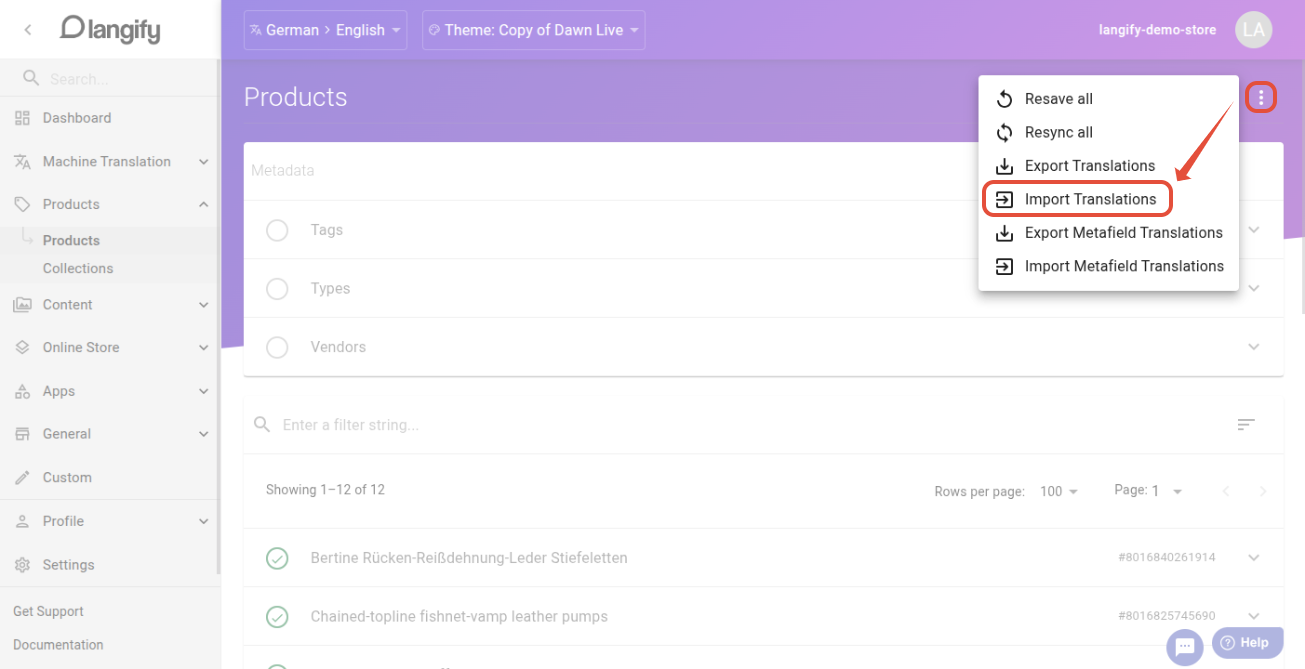
To import a file, click the three-dot icon in the top-right and choose Import Translations.
This will prompt a popup with additional import options. Click Select From Filesystem to choose an import file.
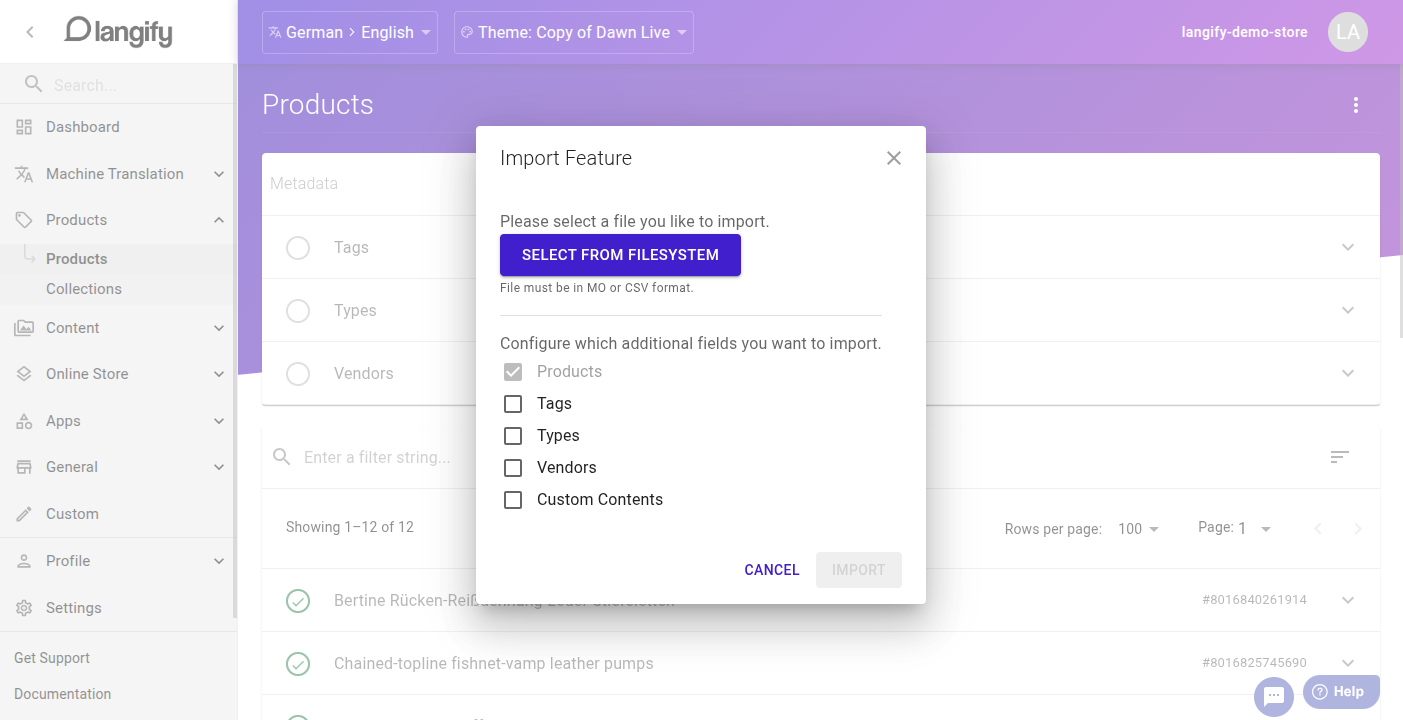
Once you have chosen an import file, click the blue Import button in the lower-left of the popup. Depending on how many translations need to be imported, this can take a while. If you're importing tens of thousands of translations, this might even take half an hour or more.
Import Formats
PO/MO
PO is a widely used translation format, but it requires additional software to open and edit. You can download a free version at poedit.net.
- Open the PO file in Poedit.
- Create the MO file by saving the PO file, or choose File > Compile to MO.
- Choose the MO file when importing to langify.
The PO file is for human editing; the MO file is the one you import into langify.
CSV
Keep the two-column structure: source and target. The original content goes in source, and the translation goes in target.
During import, translations are applied to all texts that match the source value.
CSV columns: source, target
Advanced CSV
The Advanced CSV includes additional columns for the Shopify ID and field type. With this information, the import updates only texts with the matching ID and type.
CSV columns: id, type, source, target
Make sure the CSV file's columns match the required names exactly. Otherwise, langify will not be able to read and import the file.